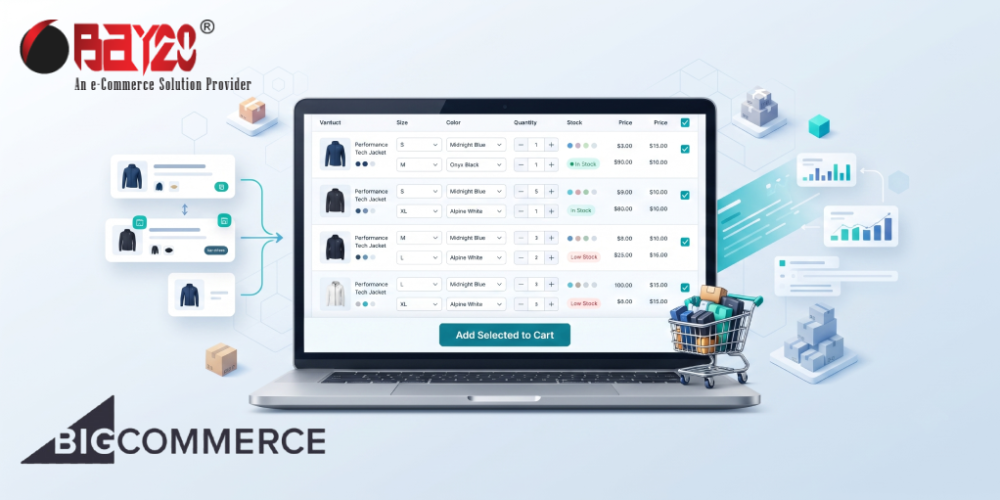
For many B2B and wholesale businesses, the standard product page experience is not always enough. Customers often need to purchase multiple product variants at the same time. Instead of selecting one variant, adding it to the cart, and repeating the process, they want a faster way to build large orders. A multi-variant bulk add-to-cart feature solves this problem. It allows customers to select quantities for several variants and add everything to the cart with a single click.
In this article, you’ll learn how this feature works in BigCommerce using Storefront JavaScript and the Cart API. This article will cover the benefits, technical requirements, and implementation process.
Use Cases
A multi-variant bulk add-to-cart interface can improve the buying experience for several types of stores.
B2B and Wholesale Stores
Wholesale buyers often order multiple sizes, colors, or configurations in one purchase. A bulk ordering table lets them build large orders quickly.
Industrial and Manufacturing Suppliers
Customers frequently purchase several part numbers or product variations at the same time. A bulk add-to-cart workflow reduces repetitive actions and saves customers’ time.
Apparel and Fashion Stores
Buyers can enter quantities for multiple sizes and colors without navigating through variant selectors repeatedly.
Electronics and Components Stores
Customers can order multiple specifications, lengths, or connector types from a single product page.
Repeat Buyers
Returning customers usually know exactly what they need. Bulk ordering helps them complete purchases faster.
Prerequisites
Before building the feature, please ensure the following requirements are met.
BigCommerce Store Access
You should have access to the theme files and be able to modify product page templates.
Product Variants
The feature works best for products that contain multiple variants, such as:
- Size
- Color
- Material
- Length
- Configuration
Storefront JavaScript Knowledge
Basic understanding of JavaScript is required to:
- Read variant data
- Capture quantity selections
- Send requests to the cart
BigCommerce Cart API
The implementation relies on the Cart API to add multiple line items in a single request.
Product Variant Data
You will need access to variant information such as:
- Product ID
- Variant ID
- SKU
- Option values
- Inventory status
Here is the process to build a multi-variant bulk add-to-cart feature in Bigcommerce:
Step 1: Display Variants in a Bulk Ordering Table
Instead of showing a standard variant dropdown, display all available variants in a table. Customers can enter quantities directly into the table. This approach makes all available options visible at once and reduces unnecessary clicks. Example columns may include:

Step 2: Capture Selected Quantities
Using Storefront JavaScript, listen for quantity changes and collect only the variants with quantities greater than zero. This creates a clean list of variants that should be added to the cart. Example data structure:
[
  {
    variantId: 101,
    quantity: 5
  },
  {
    variantId: 102,
    quantity: 3
  }
]
Step 3: Build the Cart API Payload
Convert the selected variants into the format expected by the BigCommerce Cart API. Each line item represents a unique variant and quantity. Example:
{
  lineItems: [
    {
      quantity: 5,
      productId: 123,
      variantId: 101
    },
    {
      quantity: 3,
      productId: 123,
      variantId: 102
    }
  ]
}
Step 4: Submit a Single Cart Request
When the customer clicks the Bulk Add to Cart button, send all selected variants in one API request. This creates a faster and more efficient experience compared to sending separate requests for each variant.
fetch('/api/storefront/carts', {
  method: 'POST',
  credentials: 'same-origin',
  headers: {
    'Content-Type': 'application/json'
  },
  body: JSON.stringify(payload)
});
Step 5: Handle Success and Error Responses
After the API request completes:
- Display a success message.
- Update the cart quantity.
- Refresh the mini cart if applicable.
- Show validation messages for invalid quantities.
- Handle inventory-related errors gracefully.
A clear response helps customers understand whether their products were added successfully.
Step 6: Improve the User Experience
Several enhancements can make the feature more useful.
- Quantity Validation: Prevent negative values and invalid inputs before submitting the request.
- Inventory Awareness: Disable quantity inputs for out-of-stock variants.
- Search and Filtering: Allow customers to quickly locate specific variants in large tables.
- Sticky Add-to-Cart Button: Keep the action button visible while customers scroll through long variant lists.
- Bulk Quantity Actions: Provide shortcuts such as:
- Clear All
- Select All
- Apply Quantity to Multiple Variants
Implementing a multi-variant bulk add-to-cart feature offers several business advantages:
- Faster ordering process
- Improved customer experience
- Higher average order value
- Reduced cart abandonment
- Better support for B2B purchasing workflows
- Fewer clicks required to complete large orders
For stores that rely on repeat buyers or wholesale customers, these improvements can have a measurable impact on conversions.
Please contact us at manish@bay20.com or call us at +91-9582784309 or +91-8800519180 for any support related to Bigcommerce. You can also visit our website to check the services we offer.