
In the BigCommerce B2B edition, there are several ways to create a company. Apart from customers applying for a Company account, there are other ways to create company accounts from the Bigcommerce B2B dashboard. You can check our Apply for Company Account blog for applying for a Company account. Let’s have a look at the ways to create company accounts from the Bigcommerce B2B dashboard.
Creating a Company Account Manually
If you already have clients you’re working with, you can create Company accounts for them manually from your B2B edition control panel. You can follow these steps to create a company account manually:
1. Log in to your BigCommerce dashboard and navigate to B2B > Companies.
2. Now, click the +Add new button to create a new Company.
3. Enter the Company information like Company name, Phone number, and Email.
4. If this company is part of another company, then select the parent company.
5. Assign a customer group if applicable.
6. Now, add the address of the company. Now, you need to add the Company’s admin user.
7. If you have already created a customer account for this company, then just enter the email of the customer. The rest of the customer’s details will be filled automatically.
8. If you haven’t created a customer for this company, fill in the email, firstname, lastname, and select the sales channel.
9. Now, click the Save button to complete the Company account creation.
Creating Company Accounts in Bulk
If you have to create multiple Company accounts, you can import them in bulk using a CSV template. You can also modify an exported CSV file of Company accounts for editing existing accounts and creating new accounts simultaneously. To import and export Company accounts in the B2B Edition, your user account must have the permissions to
- View Companies
- Export Company CSV
- Import Companies.
The above permissions are already enabled for the Administrator and Store Owner user roles. To import new Company accounts in Bulk, follow these steps:
1. Log in to your BigCommerce dashboard and navigate to B2B > Companies.
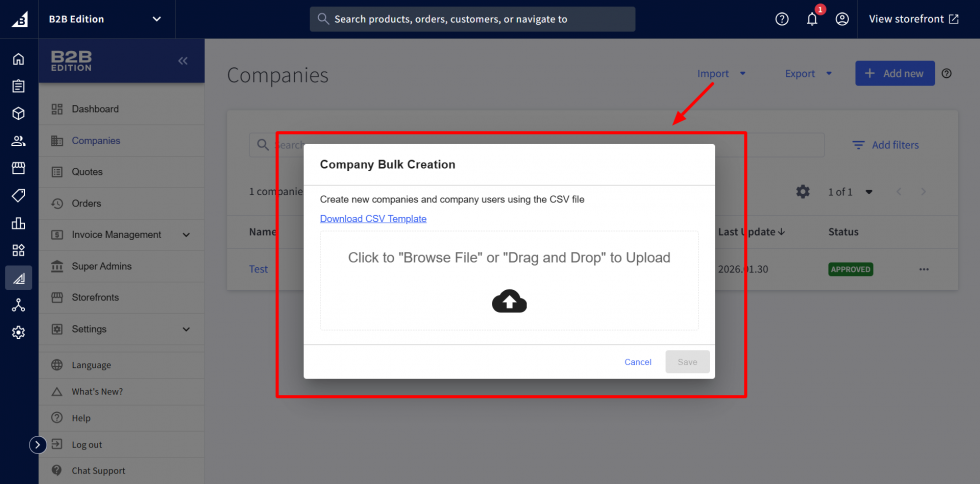
2. Click the Import dropdown from the top and select the Import Companies option.
3. Now, click the Download CSV Template link to download the CSV import template.
4. Then, fill in the Company account information fields in the CSV. The required fields for creating Company accounts are labeled as (Required) in the CSV template.
5. The required fields for creating the Company accounts are Company Name, Company Phone Number, Company Email Address, Company User Email, Company User First Name, Company User Last Name, and any Company or Company User extra fields that you’ve marked as required in your settings.
6. After you complete filling in the Company’s contact and admin information in the CSV file, drag and drop the file into the pop-up, or use the Click to Browse File option to select the file from your computer.
7. Click the Save button to start the import.
Please contact us at manish@bay20.com or call us at +91-8800519180 / +91-9582784309 for any support related to Bigcommerce. You can also visit the Bigcommerce development page to check the services we offer.