
If your business works with regional sales representatives, you can add a sales rep locator for your BigCommerce store. Customers can enter their ZIP code to instantly see their assigned representative instead of emailing your support team to find out who to contact. The result will show the name, email, and phone number of the sales representatives.
Requirements:
- A Google Sheet (for the data table)
- Bigcommerce store and a sales rep locator page.
- Google Sheets API
Here is the process to build the sales rep locator:
Step 1: Set up the Google Sheet
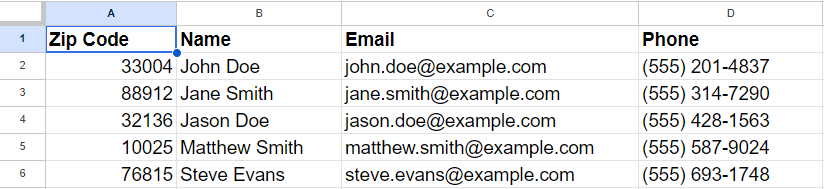
Create a new Google Sheet and structure it with the four columns as shown in the example below.
Step 2: Share the Google Sheet
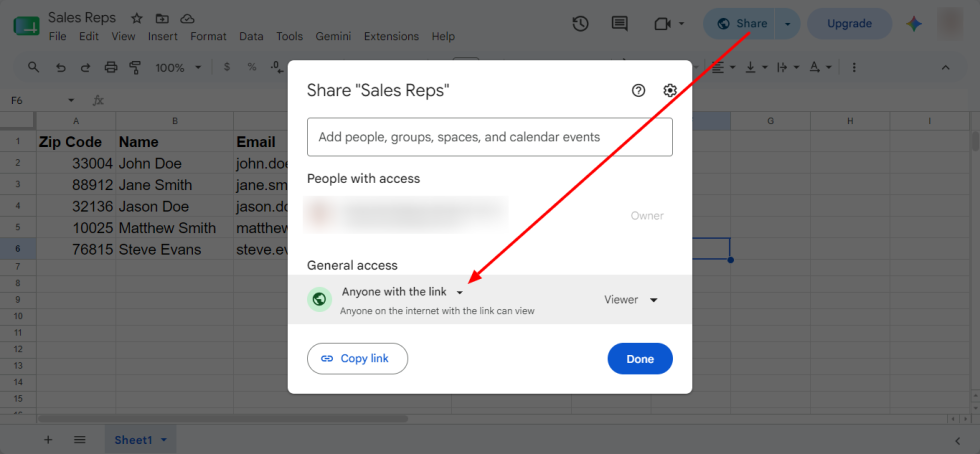
Once your data is entered, share the sheet by going to Share → Anyone with the link → Viewer. You do not need to publish it publicly. The API key created in the next step handles all the access.
Step 3: Create a Google Cloud API Key
- Go to console.cloud.google.com and create a new project.
- Then, navigate to APIs & Services → Library, search for Google Sheets API and enable it.
- Now, go to APIs & Services → Credentials → Create Credentials → API Key.
- Add a name for the API.
- In the Select API Restriction field, check the Google Sheets API checkbox.
- You can restrict your key to reduce security risks under Restrict your key to reduce security risks.
- Finally, click the create button to complete the API creation.
- Once the API key is created, copy it. You will need it in JavaScript logic.
Step 4: Create the HTML structure for the rep locator.
Add an HTML code that includes the input field for the zip code, the submit button, and the result container. You can add CSS to design the structure as you like. Here is an example code:
<div class="fsr-columns">
  <div class="fsr-col-left">
    <div class="fsr-field-group">
      <label for="fsr-zip">Zipcode</label>
      <div class="fsr-input-row">
        <input type="text" id="fsr-zip" placeholder="Enter your Zipcode" maxlength="5" inputmode="numeric"
          pattern="[0-9]{5}" aria-label="Enter your 5-digit Zipcode">
        <button id="fsr-search-btn">Search</button>
      </div>
    </div>
  </div>
  <div class="fsr-col-right">
    <div class="fsr-results">
      <!-- Results will be displayed here -->
    </div>
  </div>
</div>
Step 5: JavaScript logic
Add the JavaScript logic to display the result. You can update the format of the result as you need. Update the dummy values with your actual values.
const SHEET_ID = 'YOUR_SHEET_ID_HERE'; // Replace with your actual Google Sheet ID
const API_KEY = 'YOUR_API_KEY_HERE'; // Replace with your actual Google API key
const SHEET_NAME = 'YOUR_SHEET_NAME_HERE'; // Replace with your actual sheet name. For example: Sheet1
const API_URL = 'https://sheets.googleapis.com/v4/spreadsheets/' + SHEET_ID + '/values/' + encodeURIComponent(SHEET_NAME + '!A:D') + '?key=' + API_KEY;

let zipInput = document.getElementById('fsr-zip');
let searchBtn = document.getElementById('fsr-search-btn');
let resultsContainer = document.querySelector('.fsr-results');

searchBtn.addEventListener('click', function () {
  let zipCode = zipInput.value.trim();
  if (zipCode.length === 5 && /^\d{5}$/.test(zipCode)) {
    fetch(API_URL)
      .then(response => response.json())
      .then(data => {
        let headers = data.values[0];
        let rows = data.values.slice(1); // Remove header row
        let result = rows.find(row => row[0] === zipCode);
        let resultHTML = '';
        result.forEach((row, index) => {
          resultHTML += `<p><strong>${headers[index]}:</strong> ${row}</p>`;
        });
        resultsContainer.innerHTML = resultHTML;
      })
      .catch(error => {
        console.error('Error fetching data:', error);
      });
  }
});
It will display the result as shown below:
Zip Code: 10025
Name: Matthew Smith
Email: matthew.smith@example.com
Phone: (555) 587-9024
The result is a lightweight, maintainable feature with zero backend infrastructure. The Google Sheet acts as the database. Meanwhile, the API handles the read, and the browser does all the matching and rendering. You can use this feature in other e-commerce platforms as well because it is not bound to any single platform. You can use this anywhere.
Please contact us at wargis@bay20.com/manish@bay20.com or call us at +91-9582784309 or +91-8800519180 for any support related to Bigcommerce. You can also visit our website to check the services we offer.