
Webflow creates points as you work. It does this every 50 times it auto-saves. It also creates one when you go back to a version. With a paid plan like Basic, CMS, Business, or Enterprise, you can have backups. You can restore your site from any of these backups at any time. If you are on the free Starter plan, you can only restore from the last two backups. Unless your Workspace is on a paid plan.
It’s an idea to save a backup manually before making any big changes. This could be a redesign, an update to your content, or, before trying something that might not work. You should save a backup before doing something that might cause problems. This way, you can always go back if something goes wrong.
Step 1: Make sure your changes are saved
You can check whether your current state is saved and up to date from the checkmark icon in the top right of the Designer.
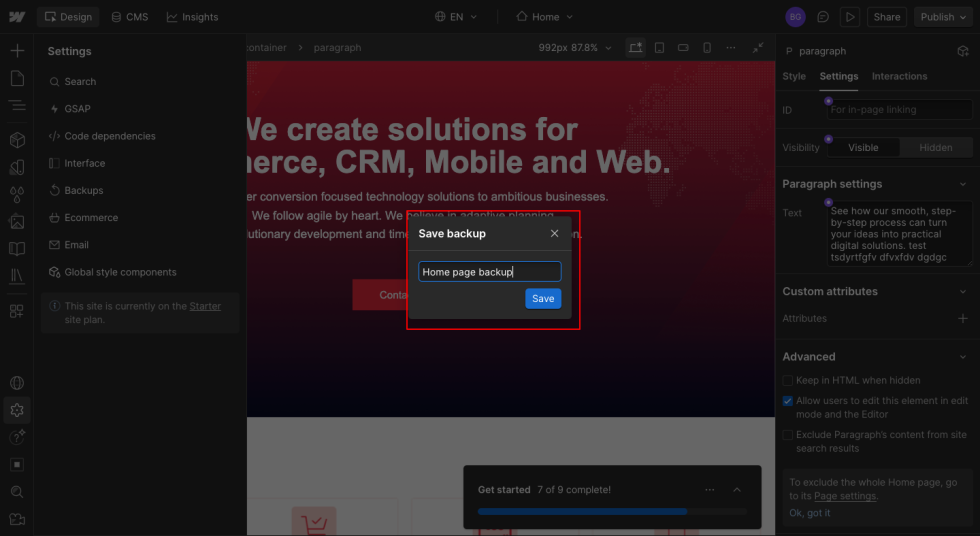
Step 2: Open the Save backup dialog
1. Open the site in the Webflow Designer.
2. Press Command + Shift + S (Mac) or Control + Shift + S (Windows) to open the “Save backup” window.
3. In the “Description” field, enter a more suitable name, for example, “Restore Read” instead of using the same name as “Backup 1”.
4. Click the “Save” button.
Step 3: Confirm the backup was created
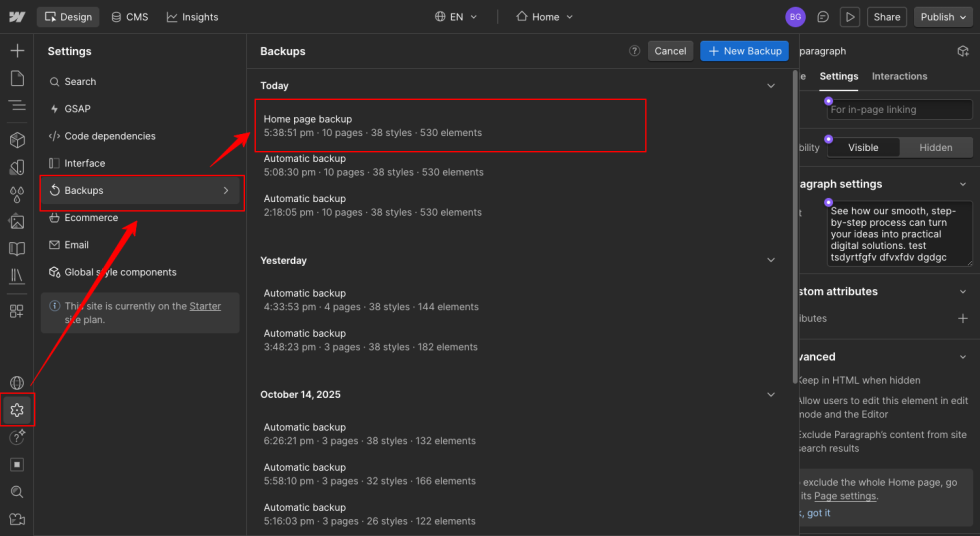
1. Open Site settings inside the Designer mode.
2. Click the Backups tab.
3. Your new manual backup should appear at the top of the list, with its description and timestamp.
Previewing and restoring a backup
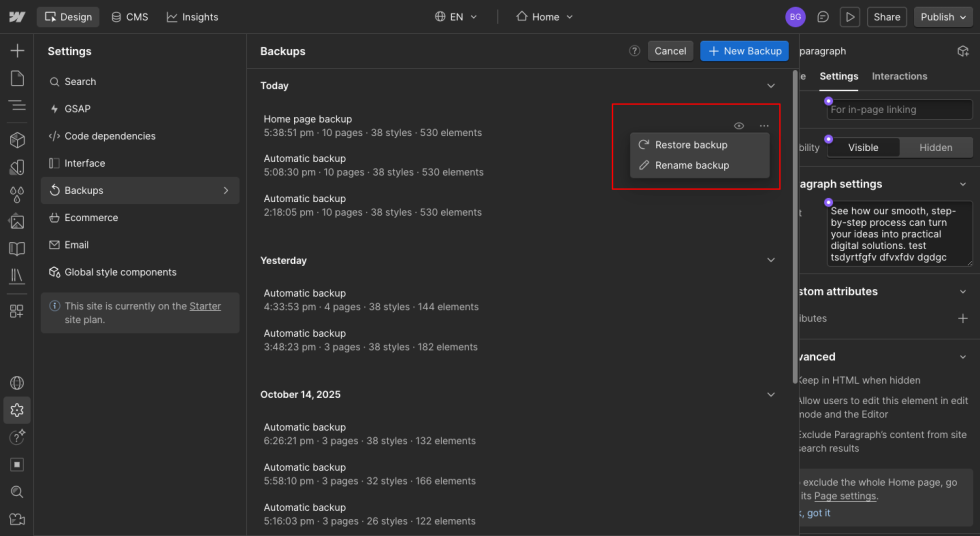
From the Backup tab, you can hover over any entry and click the eye icon to preview that version in a new tab before taking any further action. Click the three-dot menu next to the backup to restore or rename it. Webflow saves the current state as a new backup before automatically restoring, so you always have the option to revert the changes.
Please contact us at manish@bay20.com or call us at +91-9582784309 or +91-8800519180 for any support related to Webflow. You can also visit our page to check the services we offer.