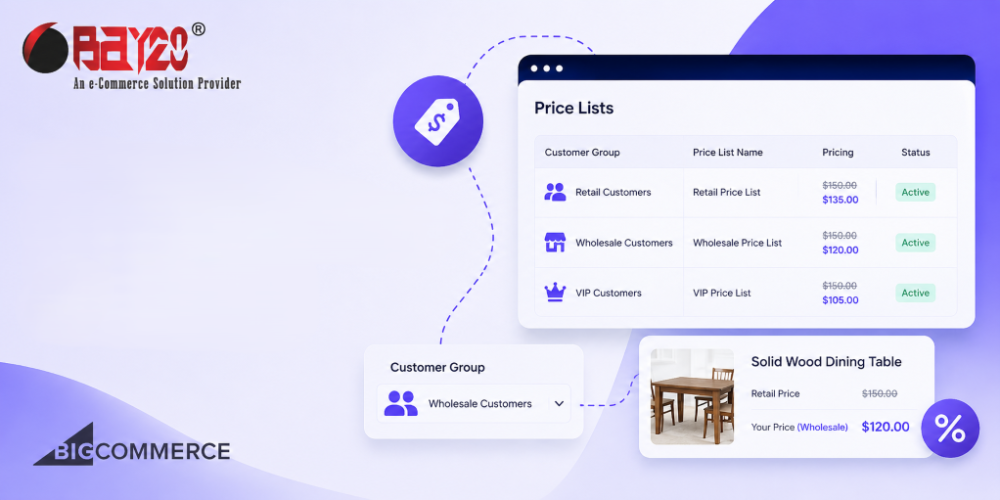
If you sell to businesses, you already know one thing: every customer wants a different price. A wholesale buyer wants a bulk rate. A long-time client wants their loyalty discount. A distributor wants a completely separate rate sheet because the contract says so. In a normal store, this turns into a mess of spreadsheets and manual overrides. BigCommerce has a built-in way to handle this cleanly, and it’s called Price Lists.
What a Price List Actually Is
Think of a Price List as a separate price tag for the same product. Your normal store has a default price for everything. A Price List lets you say “for this customer, or this group of customers, ignore the default price and use this one instead.” You can have many Price Lists at once. One for wholesale buyers, one for VIP accounts, another for a specific reseller. Each one can set its own price, and even its own sale price, for any product in your catalog. The nice part is you’re not duplicating products. You’re just attaching a different price to the same product, for a different set of people.
Requirements
This is the part a lot of guides skip, and it matters. To use price lists in your store, you must meet the following requirements:
- Your store must be on a Performance plan. A sandbox store also has Price Lists.
- You must be using a Stencil theme or a headless storefront.
- You need at least one customer group like Wholesale, VIP, Reseller, etc.
- Your user account must have the following permissions enabled:
- Read Channels
- Manage Customers
- Customer Groups
- Manage Products
- Price Lists
- Manage Categories
- Manage Brands
What You Can Actually Configure
Once it’s turned on, here’s what you can configure for each product on a given Price List:
- A custom price, overriding the default storefront price
- A custom sale price, so a group can have its own promotions separate from your public sale prices
- Per-currency pricing, if your store sells in more than one currency
- Bulk pricing tiers, so you can offer a lower price at higher quantities within that same Price List
What it doesn’t do on its own: it won’t create new products, won’t hide products from a group, and won’t handle shipping or tax differences. It’s strictly a pricing layer on top of your existing catalog.
Process to Set Up Customer-Specific Pricing
Step 1: Create the customer group.
If you haven’t created a customer group yet, create a customer group immediately and then assign all applicable customers to it.
Step 2: Create the Price List.
- From Products > Price Lists, click the Create new button and give it a name.
- Now, click the Create button and then edit the newly created price list.
- From the Prices tab, set the discount or New price for the products that you want to.
- Now, from the Assignment tab, click the Add assignment button.
- Select the customer group for which this discount is given and click Assign.
- Click the 3 dots button at the top right and make it active.
- Finally, save the price list.
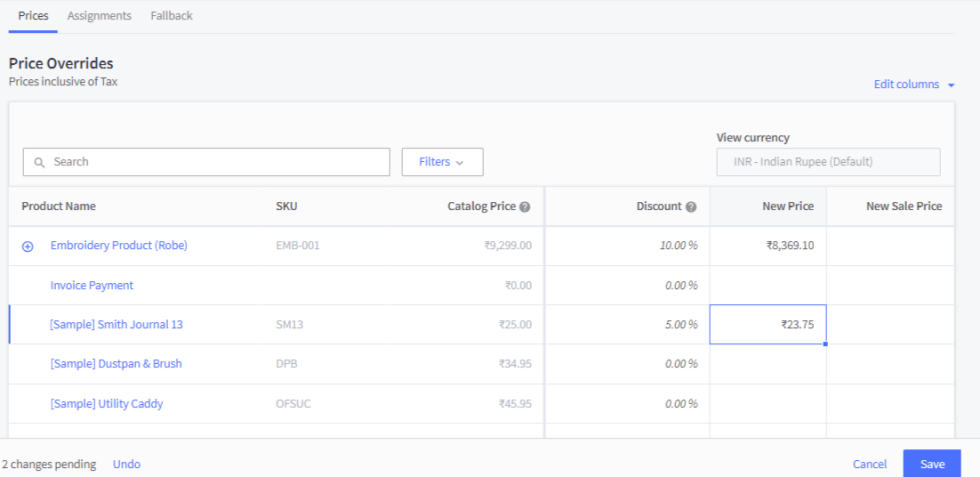
Step 3: Testing
Log in as the customer, or as a test account in that group, and then check a few products. Make sure the price shown matches what you expect, including in the cart, not just on the product page.
Conclusion
Customer-specific pricing sounds like it should be complicated, but Price Lists make it a genuinely clean process once it’s set up. Instead of managing spreadsheets or hardcoding exceptions, you get a native way to give a group of customers their own pricing, with almost no extra engineering needed for the basic cases.
Please contact us at manish@bay20.com or call us at +91-9582784309 or +91-8800519180 for any support related to Bigcommerce. You can also visit our website to check the services we offer.