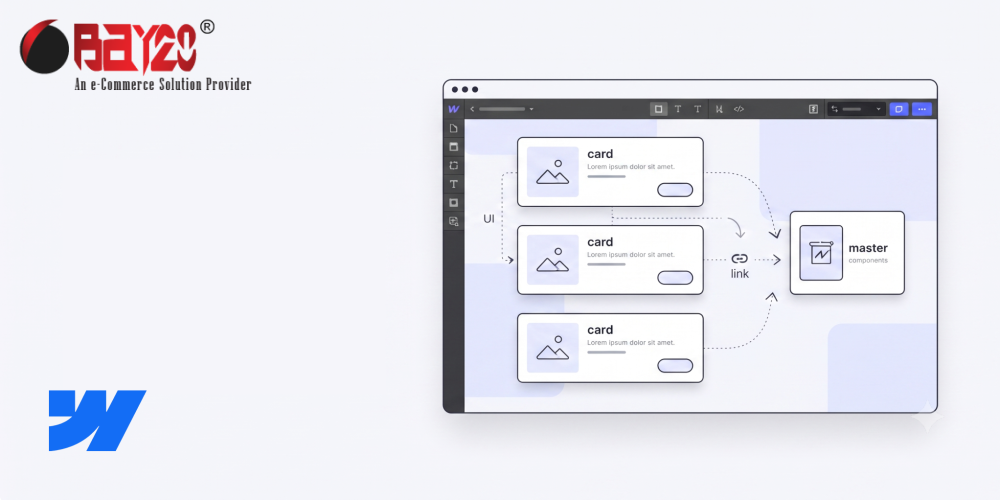
With Webflow components, you can turn any group of elements, such as a card, a navigation bar, a button, or a testimonial block, into a single unit that can be reused and placed anywhere on the site. If you make a change to the component, all its instances update automatically across all pages. This guide covers the entire workflow, from selecting elements to managing custom overrides.
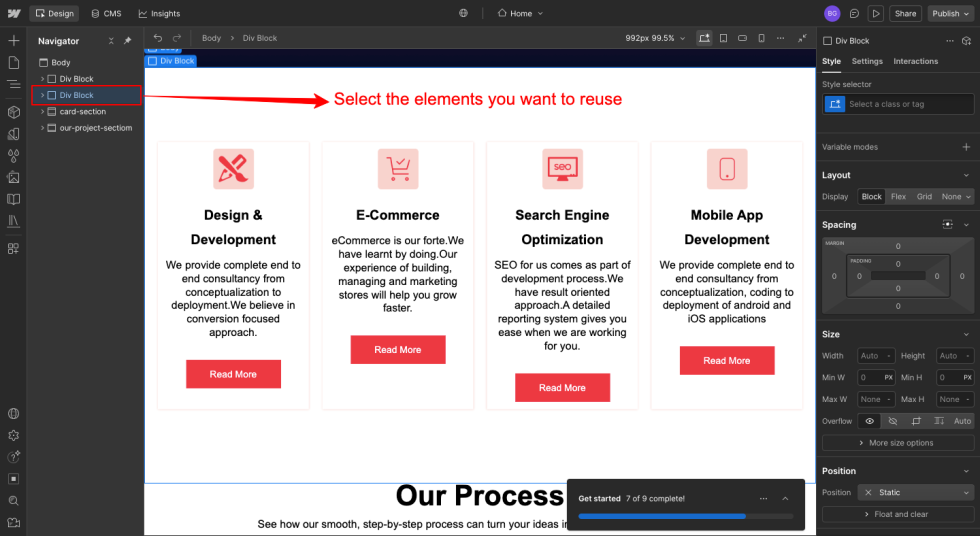
Step 1: Select the elements you want to reuse
To begin, create the template you wish to modify, exactly as it should appear when used for the first time. Typically, this includes all the content of a widget element (such as a `div` or `component`), including images, titles, text, and buttons.
Click the main element in the menu or on the screen to select each group. You will see options appear around the widget, confirming that all internal properties have been set up.
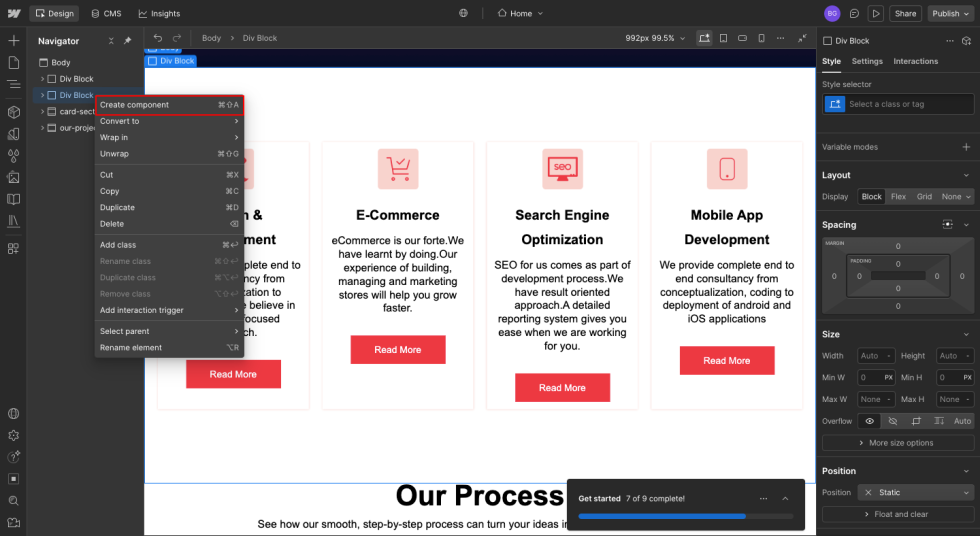
Step 2: Turn the selection into a Component
Right-click the selected object and choose “Create Component” from the menu.
- The component contains only selections.
- Nested objects, categories, and interactions are preserved.
- The base style remains constant: when a component is created, its appearance does not change.
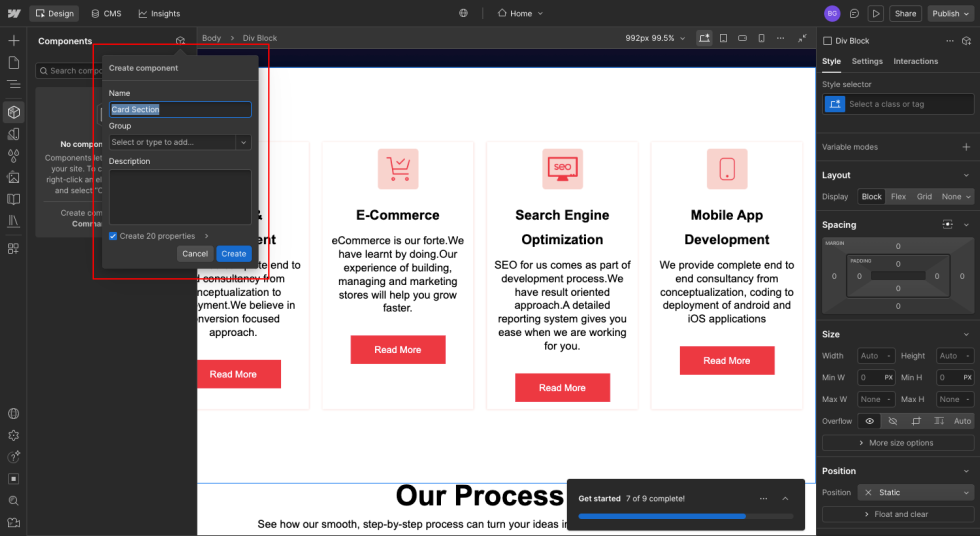
Step 3: Name your component
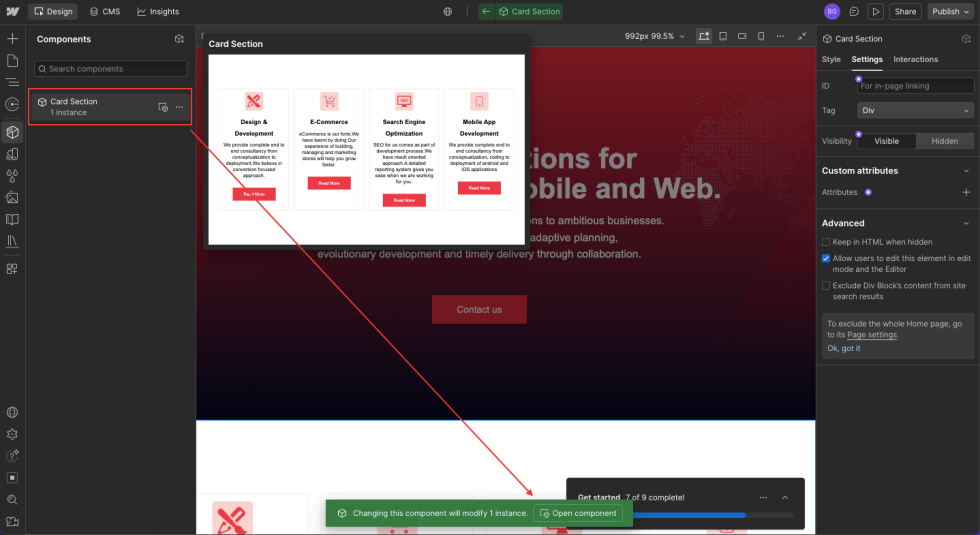
Webflow will ask you for a new name for the component. Choose a unique and descriptive name; since it will appear in the components panel, a label like “Card Section” or “According to the section” is more useful than “Div Block 4”.
Step 4: Edit the component
Double-click any instance of a component to enter edit mode. Webflow will display a green notification indicating that you’re editing the main component; any changes made here (such as font size, style, or structure) will be reflected across all instances of the component on the site.
Click outside this area or use the “Back” button to exit edit mode and return to the standard page view.
Step 5: Reuse the component across your site
Click the side panel (the icon on the right). All created elements are available for use. Drag any element onto the workspace (or onto any page) to add a new instance.
Since each instance refers to the same master object, any modification made to the master shape (such as editing text or adding a new column) automatically updates all instances across the various pages where that element is used.
Please contact us at manish@bay20.com or call us at +91-9582784309 or +91-8800519180 for any support related to Webflow. You can also visit our website to check the services we offer.