Using Bigcommerce B2B Edition, you can create user accounts for your staff. You can give them access to the B2B Edition control panel, specify what they can do, and assign specific Company accounts that they will manage. There are predefined user roles in the B2B Edition that provide permissions for your staff to perform the different tasks of managing a B2B store, but you can also create custom user roles with specific permissions.
To create the user roles in the B2B edition control panel, follow these steps:
1. Log in to your B2B store admin panel.
2. Go to the B2B control panel.
3. Navigate to Settings > System users and roles. You will see 2 tabs (Users and Roles).
4. Now, go to the Roles tab. You will see a list of predefined user roles here.
5. Click the “Create role” button to create the user role.
6. Provide a name for this role in the Details section.
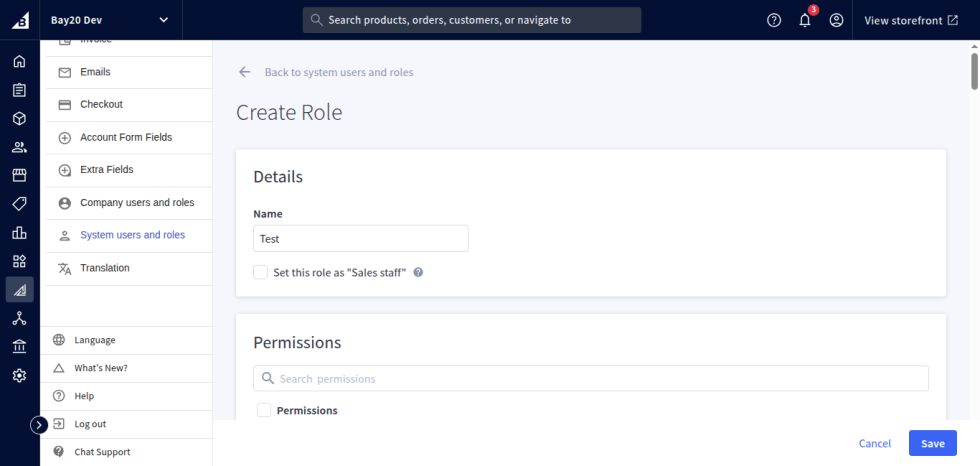
7. In the Permission section, there are different permissions for Notifications, Companies, Super admins, Quotes, Orders, Settings, System user and roles, and Invoices. Select all the permissions that you want to give to the users with this role.
8. Save the role after selecting the permission.
Now, this permission will be available to select while creating a user from the control panel for a company.
Please contact us at wargis@bay20.com/manish@bay20.com or call us at +91-9582784309 or +91-8800519180 for any support related to Bigcommerce. You can also visit the Bigcommerce development page to check the service we offer.