After you have Set up the B2B Buyer Portal for Local Development, you will need to follow one of the following paths (Developing on Stencil or Developing for Headless) so that the buyer portal scripts are configured and injected into the storefront pages.
Developing on Stencil
1. Navigate to Script Manager in your Bigcommerce admin panel to configure the header and footer script.
2. For single storefronts, go to Storefront > Script manager. For Multi-storefronts, go to Channels > Script Manager.
3. Delete the scripts named B2BEdition Header Script and B2BEdition Footer Script.
4. Add a new header script with the following configurations:
- Name: B2B Edition Header Script
- Location:
Header - Pages:
All Pages - Category:
Essential - Content:
<script>
  {{#if customer.id}}
  {{#contains page_type "account"}}
  var b2bHideBodyStyle = document.createElement('style');
  b2bHideBodyStyle.id = 'b2b-account-page-hide-body';
  b2bHideBodyStyle.innerHTML = 'body { display: none !important }';
  document.head.appendChild(b2bHideBodyStyle);
  {{/contains}}
  {{/if}}
</script>
<script type="module">
  import RefreshRuntime from 'http://localhost:3001/@react-refresh'
  RefreshRuntime.injectIntoGlobalHook(window)
  window.$RefreshReg$ = () => {}
  window.$RefreshSig$ = () => (type) => type
  window.__vite_plugin_react_preamble_installed__ = true
</script>
<script type="module" src="http://localhost:3001/@vite/client"></script>
5. Add a new footer script with the following configurations:
- Name:
B2B Edition Footer Script - Location:
Footer - Pages:
All Pages - Category:
Essential - Content:
<script type="module" src="http://localhost:3001/src/main.ts"></script>
<script>
  window.B3 = {
    setting: {
      store_hash: '{{settings.store_hash}}',
      channel_id: {{settings.channel_id}},
      platform: 'bigcommerce', // override this depending on your store channel platform: https://developer.bigcommerce.com/docs/rest-management/channels#platform
    },
  }
</script>
6. Now, navigate to B2B Edition App dashboard > Settings > Buyer Portal and set Buyer Portal type to Custom. This is only for multi-storefronts, not for single-storefronts.
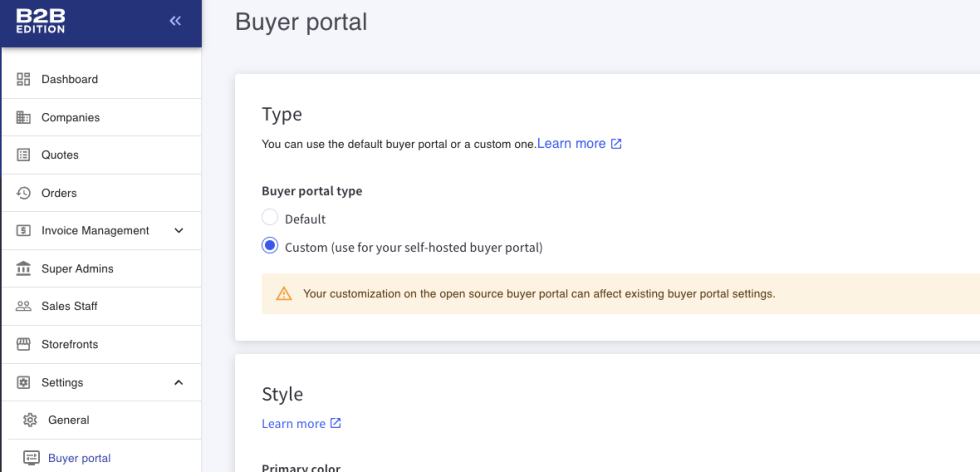
7. Now, go to your storefront and try to sign in.
Developing for Headless
1. First of all, make sure that the buyer portal is running with yarn dev.
2. Now, add this buyer portal script to the <head> tag of your headless storefront files running locally.
<script type="module">
  import RefreshRuntime from 'http://localhost:3001/@react-refresh'
  RefreshRuntime.injectIntoGlobalHook(window)
  window.$RefreshReg$ = () => {}
  window.$RefreshSig$ = () => (type) => type
  window.__vite_plugin_react_preamble_installed__ = true
</script>
<script type="module" src="http://localhost:3001/@vite/client"></script>
3. Also, add this buyer portal script to the <body> tag of your headless storefront files running locally. Do not forget to replace the REPLACE_WITH_YOUR_STORE_HASH and REPLACE_WITH_YOUR_CHANNEL_ID with the appropriate information.
<script type="module" src="http://localhost:3001/src/main.ts"></script>
<script>
  window.B3 = {
    setting: {
      store_hash: 'REPLACE_WITH_YOUR_STORE_HASH',
      channel_id: REPLACE_WITH_YOUR_CHANNEL_ID,
    },
  }
</script>
4. Then, navigate to B2B Edition App dashboard > Settings > Buyer Portal and set Buyer Portal type to Custom.
5. Finally, go to your headless storefront and try to sign in.
Please contact us at wargis@bay20.com/manish@bay20.com or call us at +91-9582784309 or +91-8800519180 for any support related to Shopify or Bigcommerce. You can also visit the Shopify or Bigcommerce development page to check the service we offer.